VORA — User Guide
Save it. Forget it. VORA remembers when it matters. Here is everything you need to use it.
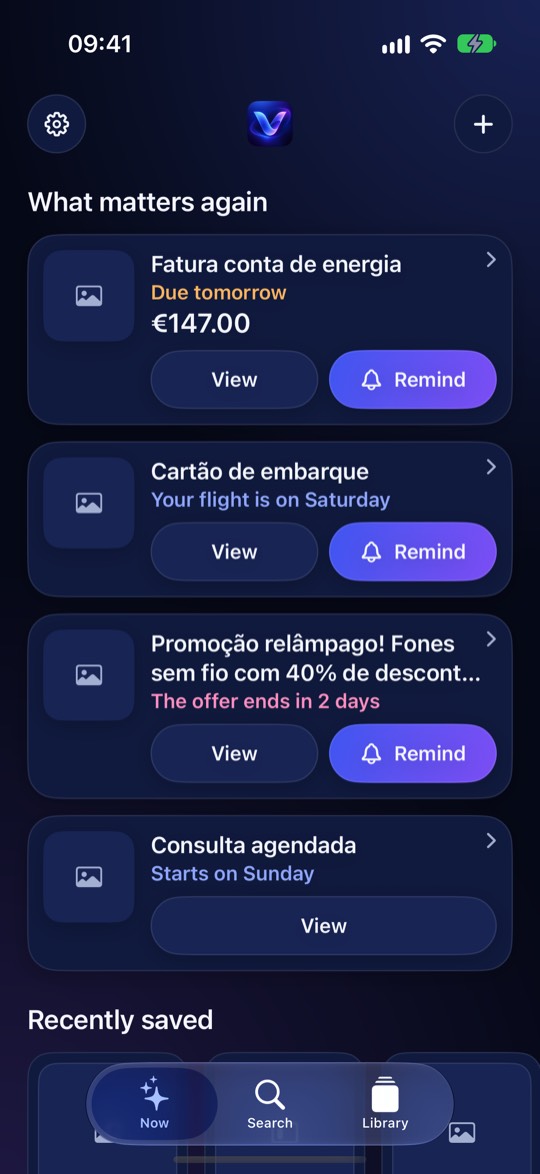 1What matters againOnly what became relevant now, with the reason in plain words.
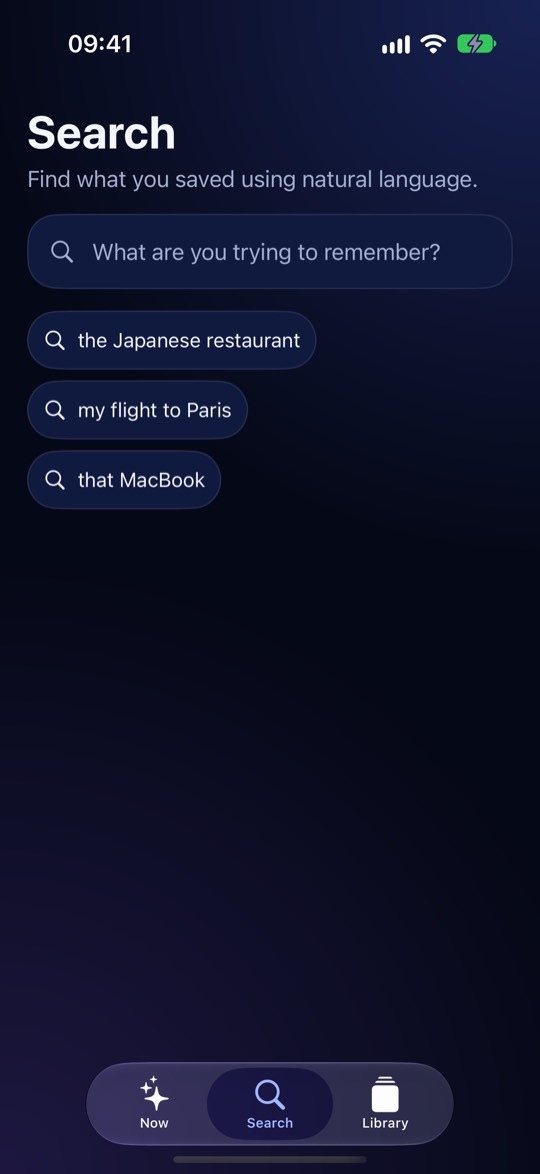 2Search like you remember“That Japanese restaurant” is enough. No exact words.
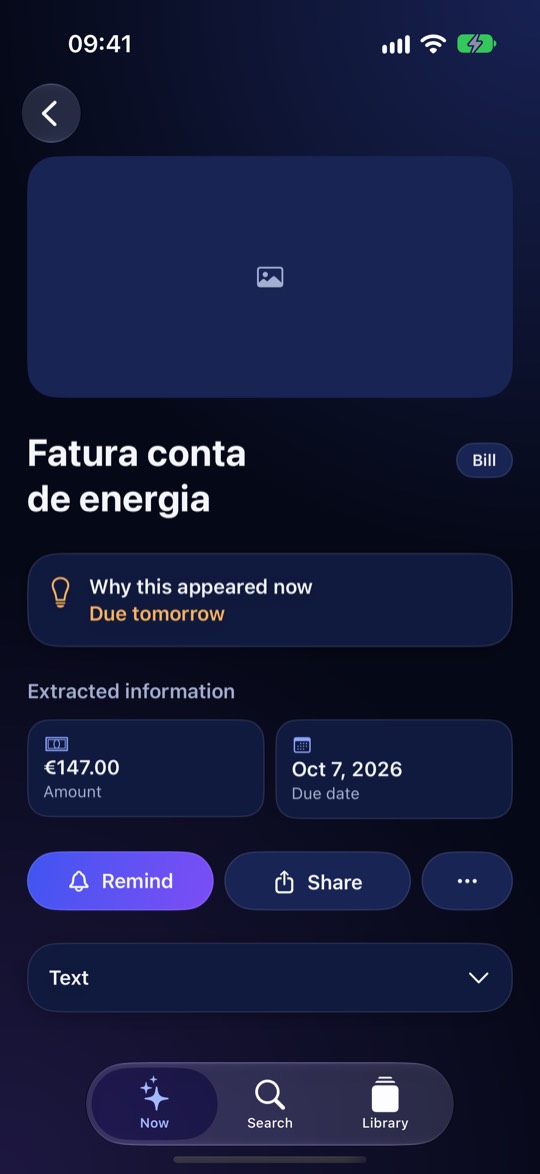 3Why it came backThe details VORA found and a Remind button when it is sure.
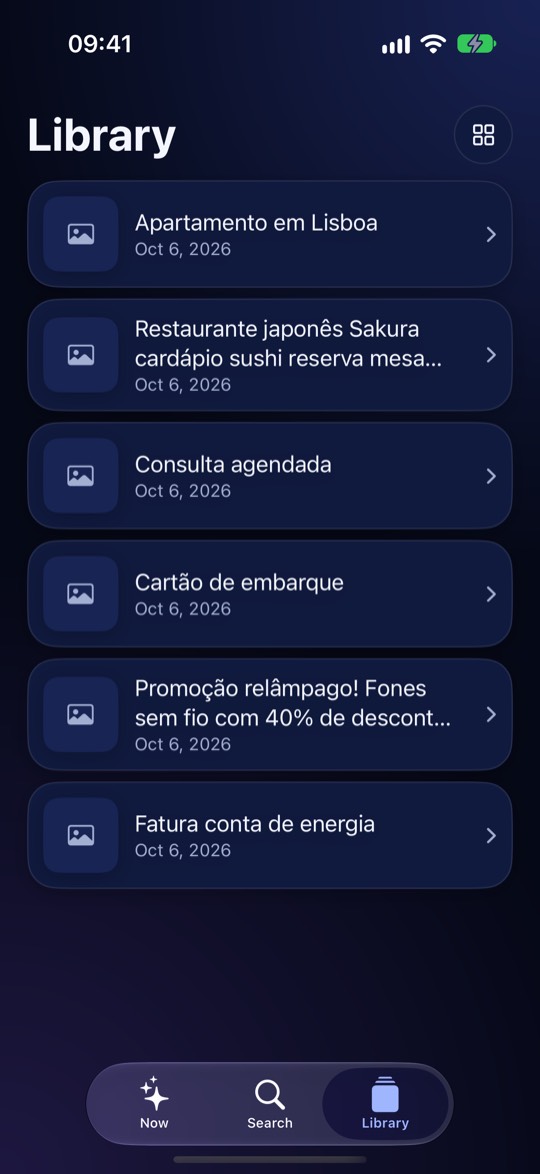 4Your LibraryEverything you saved. Swipe left to delete; switch list/grid.
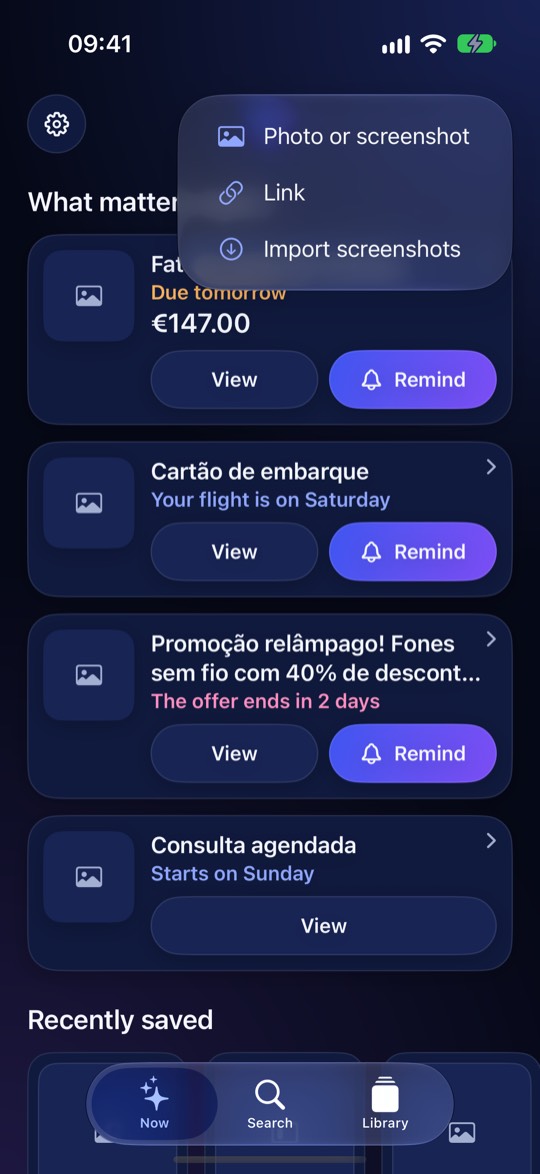 5Add anything (+)Photos, screenshots or a link with its picture.
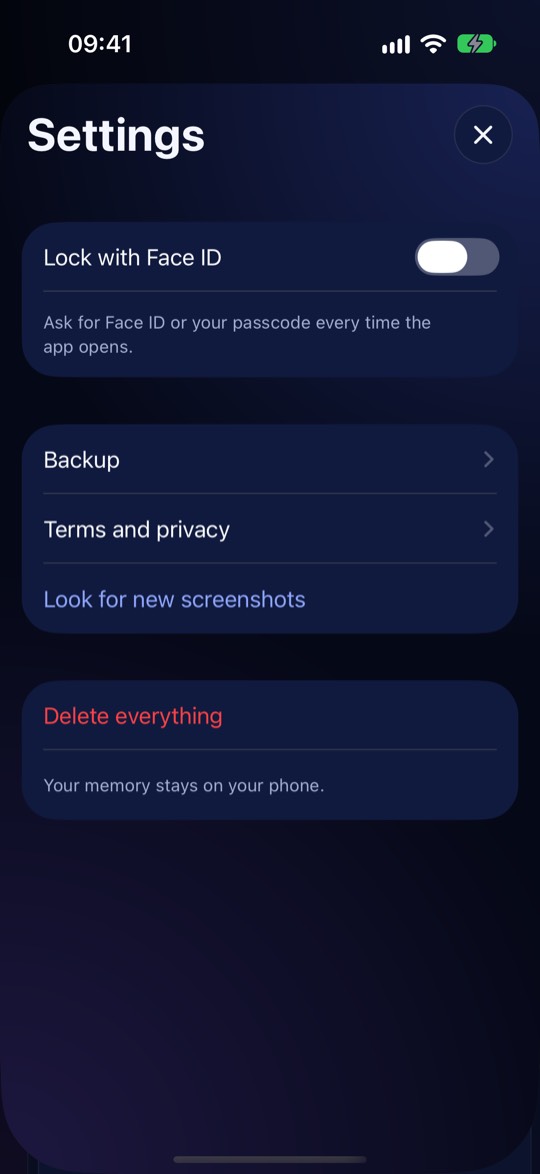 6SettingsFace ID lock, backup, terms, delete everything.
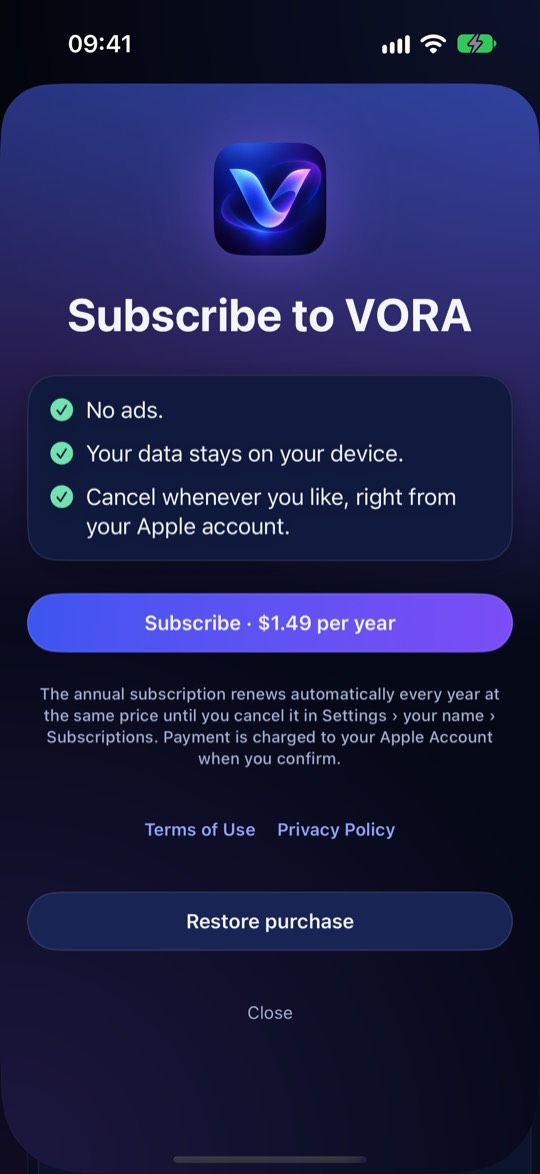 75 days free, then yearlyThe price is shown before you confirm. Restore purchase is here.
The idea
You do not organise anything. You save screenshots, photos and links, and VORA reads them on your iPhone, understands what they are and brings them back when they become useful — for example a bill “Due tomorrow”. Nothing leaves your phone.
First steps
- Open VORA and tap Discover.
- Allow access to Photos when asked. VORA then looks at your screenshots, newest first, and results start to appear before it finishes.
- You will see three tabs: Now, Search and Library.
Now
Shows only what became relevant right now, with the reason in plain words (“Due tomorrow”, “Your flight is on Friday”). If nothing is relevant, it says so — that is normal. Below you see Recently saved. When VORA is sure about a date, a Remind button appears; a reminder is created only when you tap it.
Search
Write like you remember: “that Japanese restaurant”, “my flight to Paris”, “that MacBook”. You do not need the exact words.
Library
- Everything you saved, newest first. Tap the button at the top right to switch between list and grid.
- In the list, swipe from right to left to delete. In the grid, press and hold an item.
- Pull down to refresh.
Adding things (+)
- Photo or screenshot: choose pictures from your library.
- Link: paste the address of a post or video. VORA saves its title and picture so you recognise it later. In the item, Watch / Open link opens the page inside the app.
- Import screenshots: look for new screenshots at any time. Settings › Look for new screenshots does the same.
- From other apps, use the share sheet and choose VORA.
An item
Open any item to see the picture, the details VORA found (dates, amounts, places), why it came back, and the actions: remind me, open link, delete.
Deleting — you choose
- Delete from the app only: the photo stays in Photos.
- Delete from Photos, keep in the app: the photo leaves your library but a protected copy stays in VORA.
- Delete from the app and from Photos: removes both. iOS asks you to confirm, and Photos keeps it in “Recently Deleted” for 30 days.
Reminders
VORA is conservative: it suggests a reminder only when it is sure, and never creates one without your tap. Turn notifications on in iOS Settings if you want them. Do not rely on VORA as your only way to remember something important.
Settings
- Lock with Face ID: asks for Face ID or your passcode every time you open the app.
- Backup: creates a file that you save where you want (for example iCloud Drive) and restores it later. Reminders are not restored.
- Terms and privacy and Delete everything (removes all memories from this phone; your photos are not touched).
Free trial and subscription
- The first 5 days are free. After that, VORA asks for a yearly subscription to keep working. The price is shown in the app before you confirm.
- The subscription renews automatically until you cancel it in iOS Settings › your name › Subscriptions.
- You can see the subscription screen at any time by tapping the “Free trial” bar on the Now tab. Restore purchase is on that screen.
Privacy
Everything happens on your phone. No account, no ads, no tracking. Read the full Privacy Policy and Terms of Use.
Need help?
Open the Support page or an issue at https://github.com/robsonraulsm-tech/vora-legal/issues. Please do not post private screenshots.